![NextMinute_Primary_White.svg]](https://support.nextminute.com/hubfs/NextMinute_Primary_White.svg)
Watch this video to learn about entering Breaks in your Timesheets
How to Enable Timesheet Breaks:
Step 1 - Navigate to ADMIN on the left-hand toolbar.
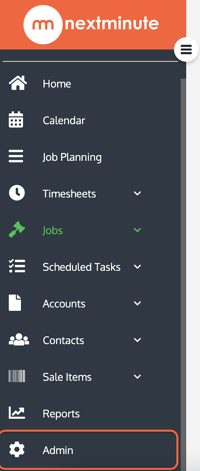
Step 2 - Navigate to ACCOUNTING on the toolbar at the top of the screen.

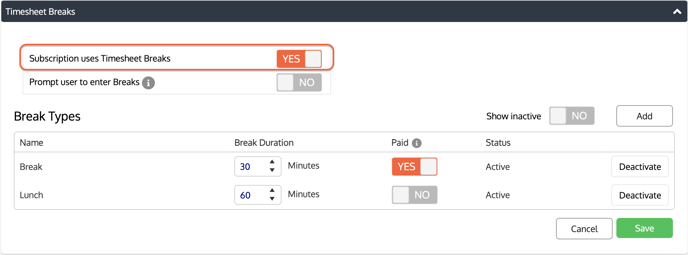
Step 3 - Scroll to the bottom of the page to the 'Timesheet breaks' section and ensure "Subscription uses Timesheet Breaks" is ENABLED.
Step 4 - Next, select which breaks you would like to be an option on your team's timesheets. You can add a new break type by clicking ADD on the right-hand side. Make sure to select whether the break should be set to PAID or not.
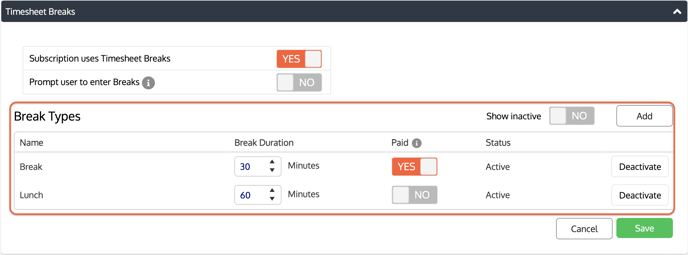
Step 5 - Once you're happy, select Save to save your changes.
If you'd like to prompt your employees to select a break type after logging a certain amount of hours on their timesheet, please click here.